Comparing & Verifying Inputs#
As a reminder, inputs are saved in the data folder that you specified on the “Cover & Configuration” tab. Within this data folder, you will find three subfolders:
./interim/: All data related to components of the system being modeled (e.g., generators)./profiles/: Hourly load & generation profiles./settings/: Resolve case settings (e.g., modeled years, active scenario tags, custom constraints)
Given this structure, we can recommend several ways to track and verify that input changes you are making in the Scenario Tool are working:
Inspecting Component CSV Files
As described in the previous pages, the CSV files saved in ./data/interim/ leverage a scenario-tagging scheme.
If you are making changes to component data (i.e., any of the green tabs in the Scenario Tool), you can find the
corresponding CSV file in ./data/interim/[component type]/[component name].csv.

Within the CSV files, there is a column called scenario, which corresponds to the scenario tags you defined.
Verify that the data that you created appears in this CSV file.
Hint
The component type (i.e., class name) and back-end (code-level) name of attributes can be found in the Scenario Tool as
named ranges. For example, on the “Fuels” tab, you can find that the name of the fuels listed in Column B map to a
named range called CandidateFuel, and the table called “Annual Fuel Price ($/MMBtu)” maps to
a named range called annual_price.
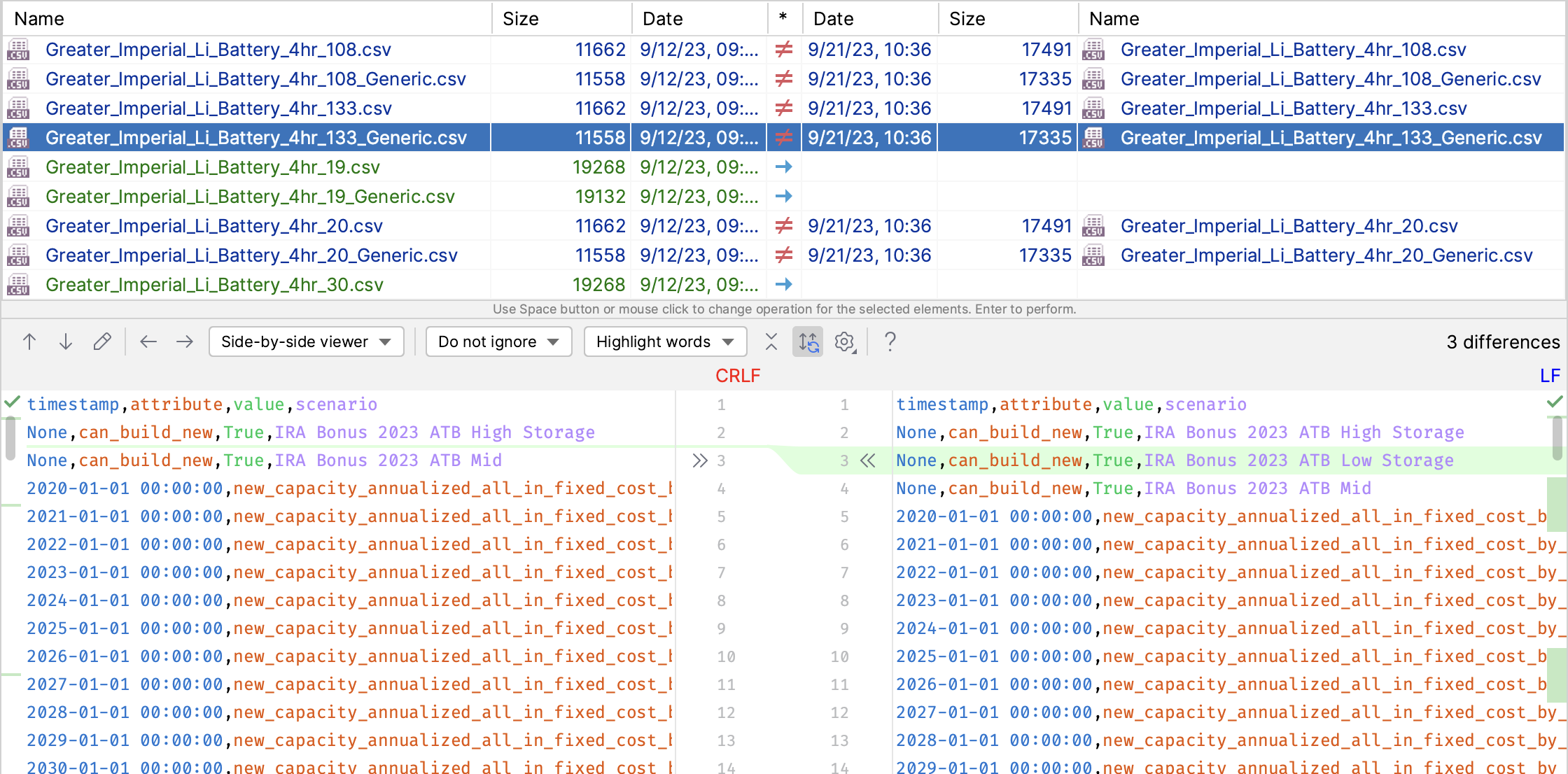
Comparing Folder Differences Using kdiff or Similar
Since the ./data/ folders just contain text (mainly csv) files, you can use any “diff” tool to compare these folders.
Many people at E3 use kdiff3, though other tools exist (e.g., WinMerge).
In general, you should see highlights of additions, deletions, or modifications at a line level within csv files.